与 iPhone 的附近交互演示
准备设置
Qorvo 附近的互动 or Qorvo NI 背景 application installed on the iPhone (model: iPhone 11, 12, 13, and newer).
至少一个 LC14 (白色) 设备。
可选: LEAPS Manager 已安装应用程序。
可选:设备电池。
For users, the recommended starting point is either the latest release.
设置时间: 少于 5 分钟
概览
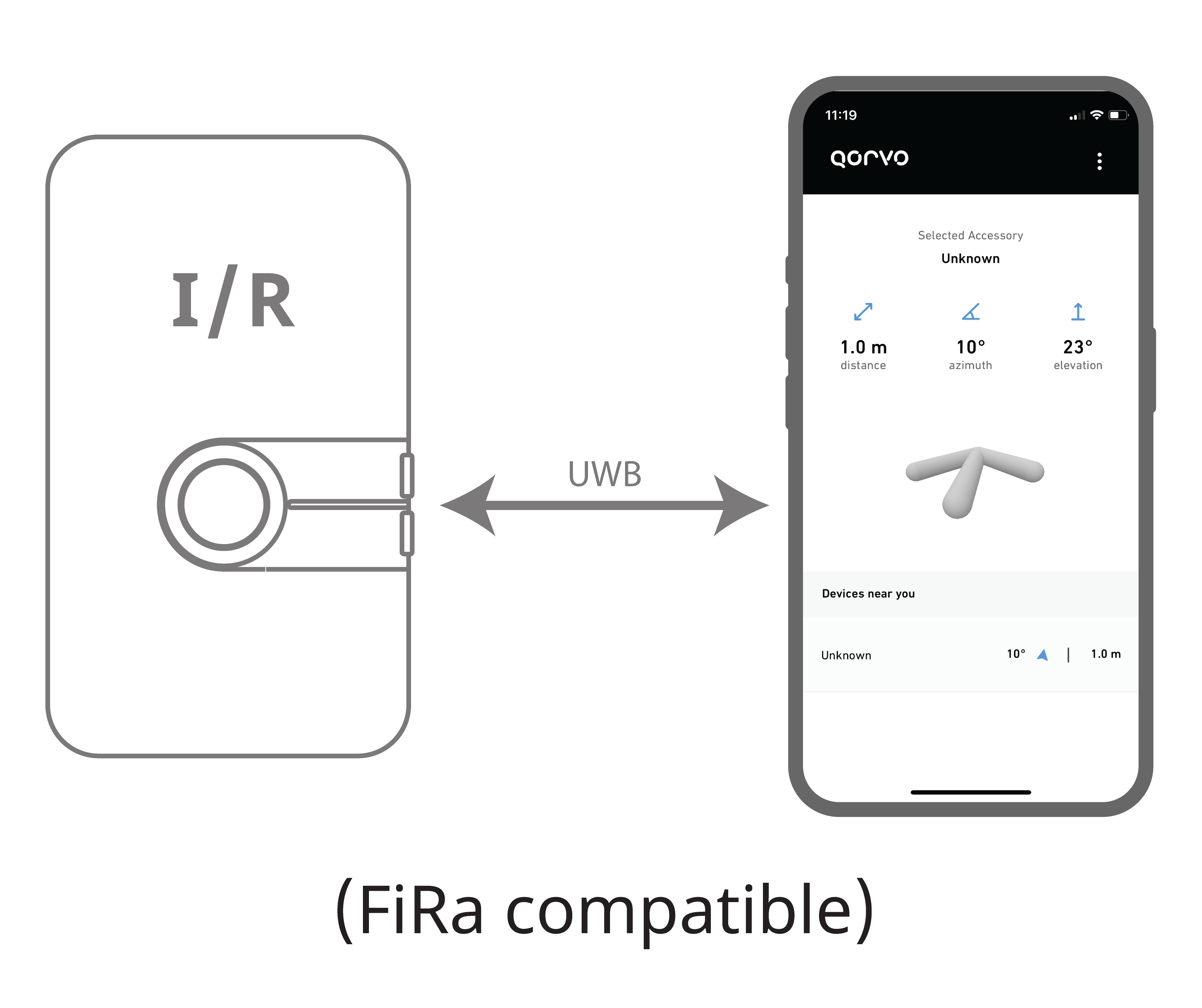
此设置展示了 近距离交互 和 FiRa 与智能 手机的兼容性. 距离和角度测量可在智能手机应用中显示配件的方向。
典型应用:查找我的物品, 跟随我, 智能遥控, 门禁控制。
设置说明
在 iPhone 上下载并安装以下应用程序。
Qorvo 附近的互动 application (foreground mode).
Qorvo NI 背景 application (background mode).
电源 ON 一个或多个 LC14 (白色) 设备。
LC14 (多个) 将在 QNI (Qorvo 附近互动) 演示中充当配件。
使用下列选项之一,将设备配置为 QNI mode模式:
使用按钮配置设备。
3.1. 按住 Button B 直到听到哔哔声,并且 BLUE LED 闪烁。
3.2. 如果出现 RED 或 GREEN 颜色,请重复步骤 a。
3.3. 当设备在哔声后闪烁 BLUE LED 时,设备被配置为 QNI 模式。
使用 LEAPS Manager 中的演示选择器进行配置。
3.1. 打开 LEAPS Manager 并从主页选择 Demo Selector。
3.2. 选择 与iPhone的近距离互动。
3.3. 通过Bluetooth发现的设备列表将出现在列表中. 如果需要,向下滑动即可更新列表。
3.4. 选择用于 QNI 演示的设备. 顶部的 Required devices 表示演示所需的设备数量。
3.5. 按下 SAVE 将设备配置到 QNI模式。
3.6. 请目测设备启动时 BLUE LED 是否闪烁。
在iPhone上打开 Qorvo Nearby Interaction 或 QorvoNIBackground 应用程序。
打开 Qorvo Nearby Interaction 应用程序后,它会立即使用 QNI BLE 服务扫描附近的配件。
当找到QNI配件并将其添加到列表中时。 请 选择并连接 到您要开始附近互动的配件。 支持多个连接。

近距离交互背景模式 要求配件与iPhone设备配对。
当首次与设备连接时,以及当应用程序首次启动 NI 会话时,它会请求用户批准使用附近的交互。
一旦配件与 iPhone 配对成功,在配件与 iPhone 之间的未来互动中,就不再需要配对和权限访问。
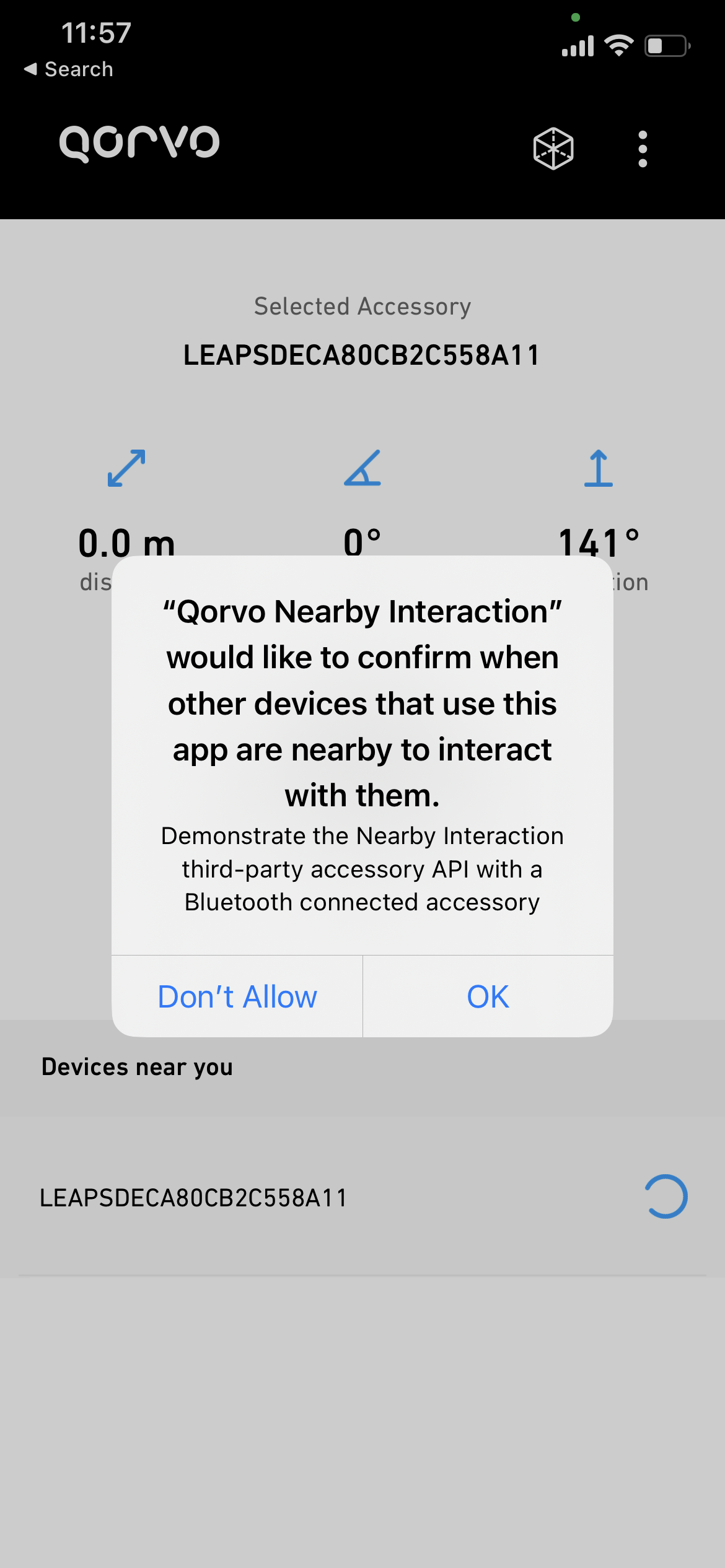
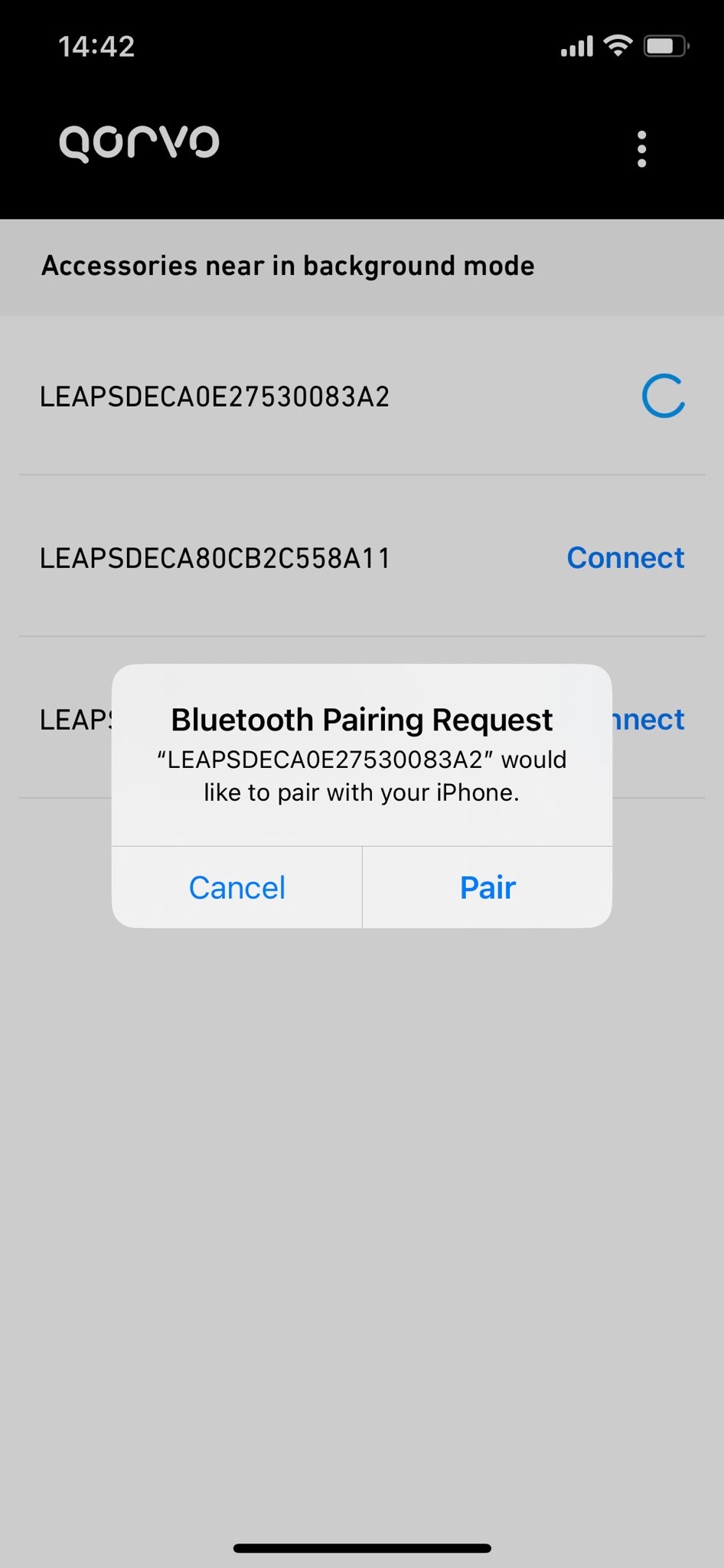
iPhone 将开始与配件进行测距,并在每一轮测距后显示 iPhone 与配件之间的测量距离。
在 Qorvo NI Background 应用程序使用 NI Background 模式的情况下,更新率会比 NI Foreground 模式低 1/3. 即使 iPhone 的显示屏关闭,也会在后台进行测距。
在 Qorvo Nearby Interaction 应用程序使用 NI Foreground 模式的情况下,还将显示从 iPhone 到配件的角度和方向. 测量值是从 iPhone 的角度测量的. 当你改变设备的方向时,应用程序还可以提供一个增强视图,利用 iPhone 的摄像头和显示屏来定位配件。
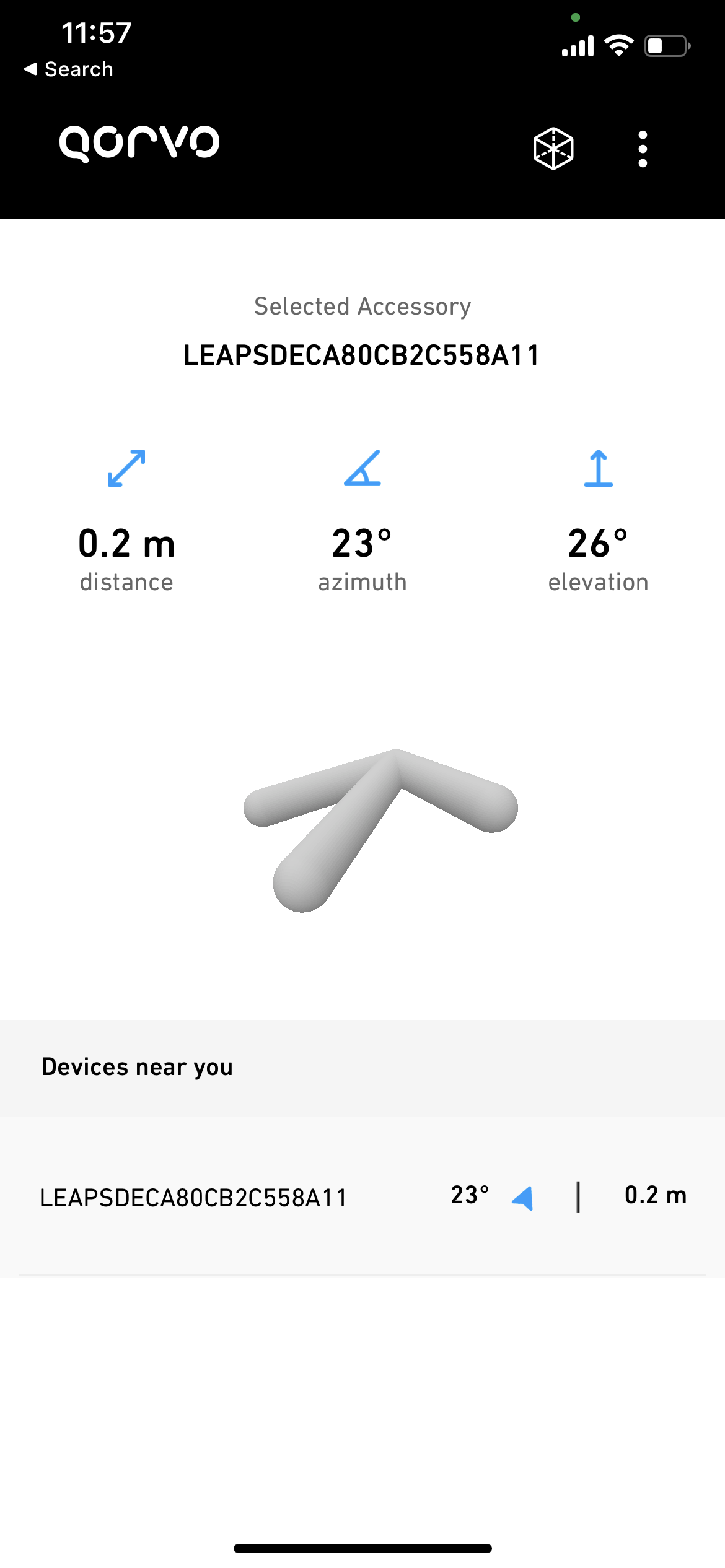
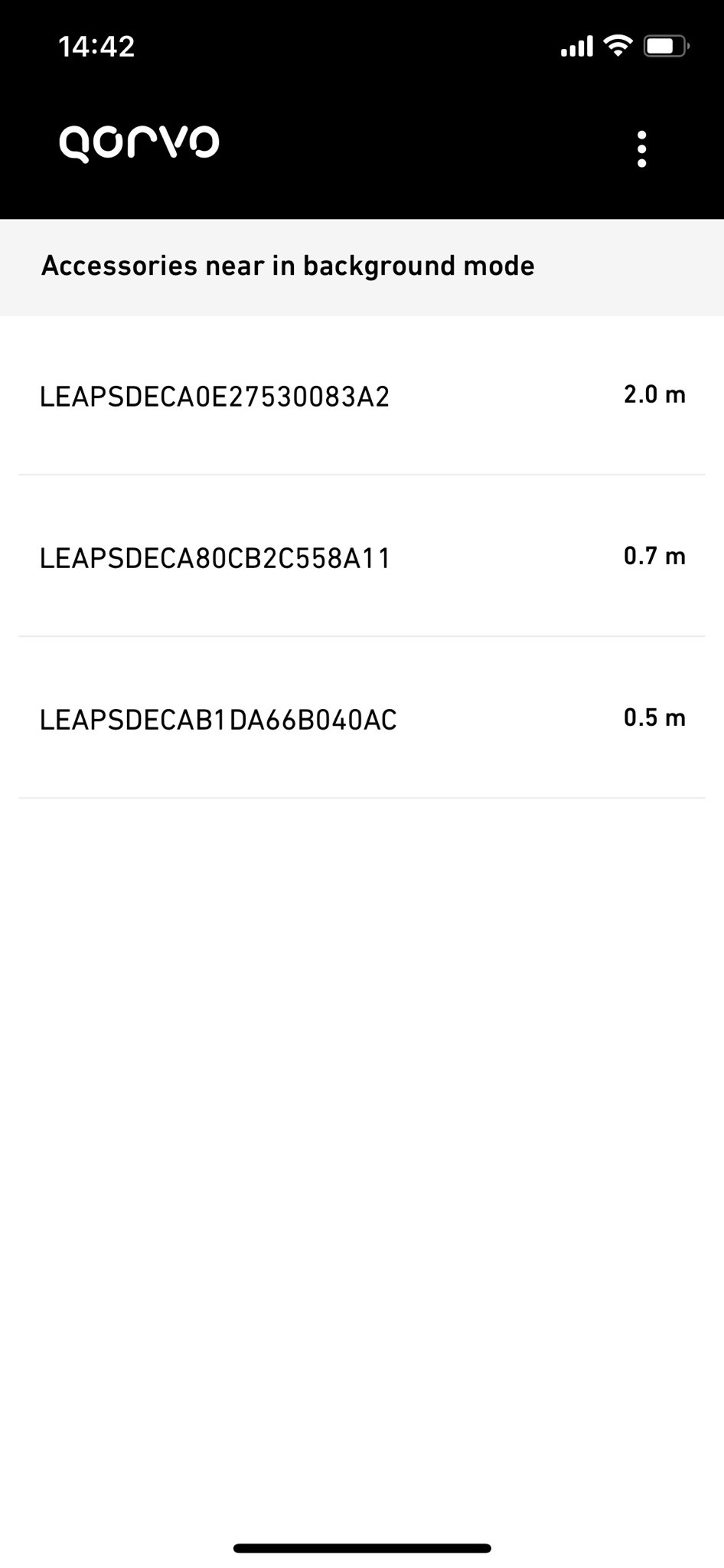
更多详情,请参阅 Qorvo 附近的互动 或 Qorvo NI 背景 应用程序。
高级设置
准备好进行高级设置!我们将利用终端的强大功能,帮助你像专业人士一样配置你的设备。 只需按照以下步骤,你就能完成所有设置。
使用 USB-C 数据线将设备的 USB-C Data Port 1 或 USB-C Data Port 2 连接到 PC。
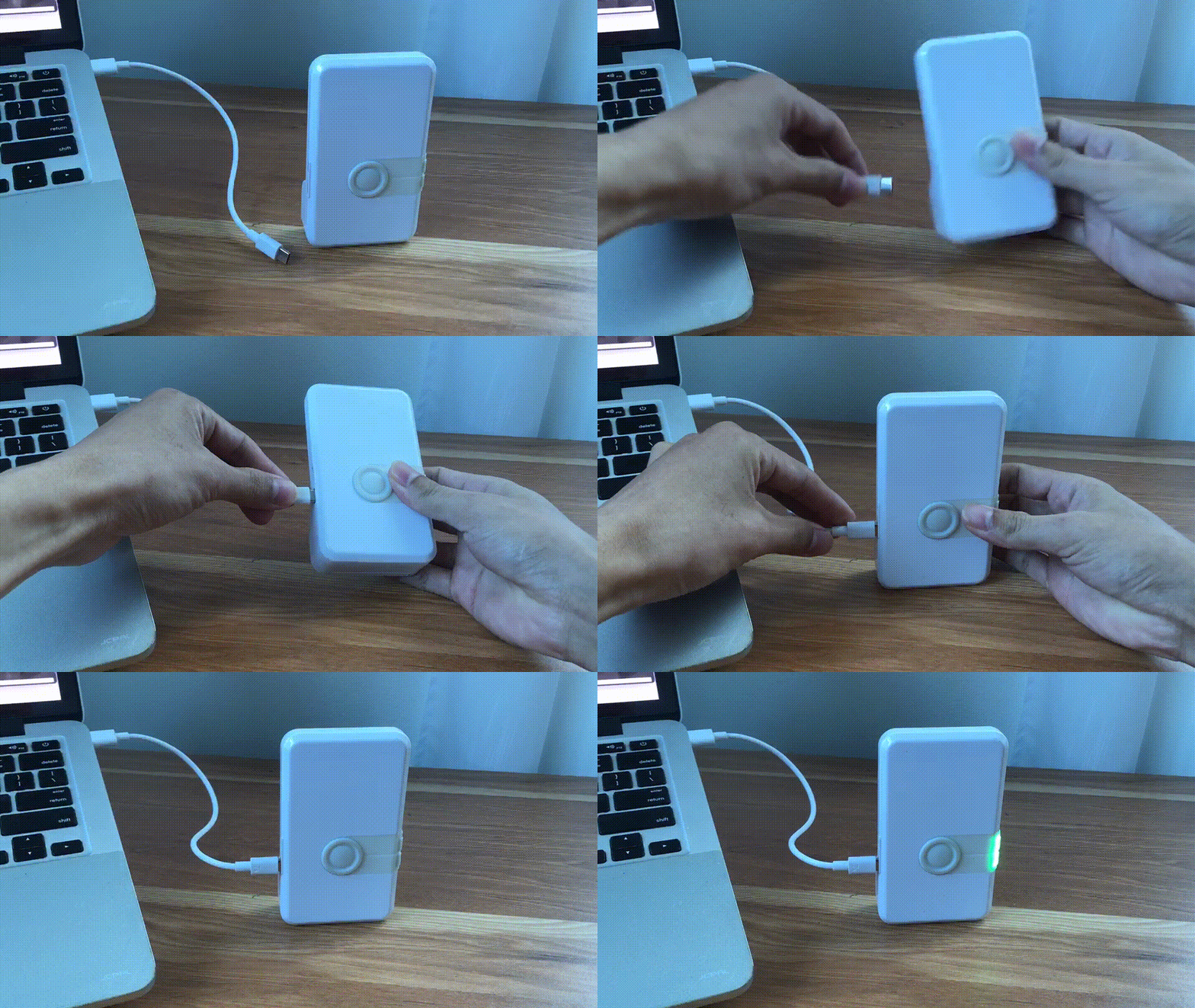
使用你想要的终端应用程序,如 Putty, Teraterm, Minicom 或你最喜欢的终端应用程序,连接到串行端口. 我们需要将波特率设置为 115200。
例如在 Ubuntu (Linux) 上使用 Minicom:
minicom -b 115200 -D /dev/ttyACM0
在 shell 控制台按下 双输入 访问命令行控制系统
例如,在 Ubuntu (Linux) 上打开 /dev/ttyACM0 并按下 双击回车键:
leaps@leaps:~$ minicom -b 115200 -D /dev/ttyACM0

  Low Energy Accurate Positioning System

  Copyright :  2016-2025 LEAPS
  License   :  Please visit https://www.leapslabs.com/leaps-rtls-license
  Compiled  :  Oct 15 2026 09:42:20 (v1.2.1-4f9295)

  Help      :  ? or help

  FOR DEMO PURPOSE ONLY, NOT FOR SALE.
  DEVICE RUNTIME IS LIMITED TO 48 HOURS. RESET THE DEVICE TO RECOVER IT.

  leaps>
Use the fniq command to update Nearby Interaction mode.
leaps> fniq届时,请目测设备启动时 BLUE LED 是否闪烁。
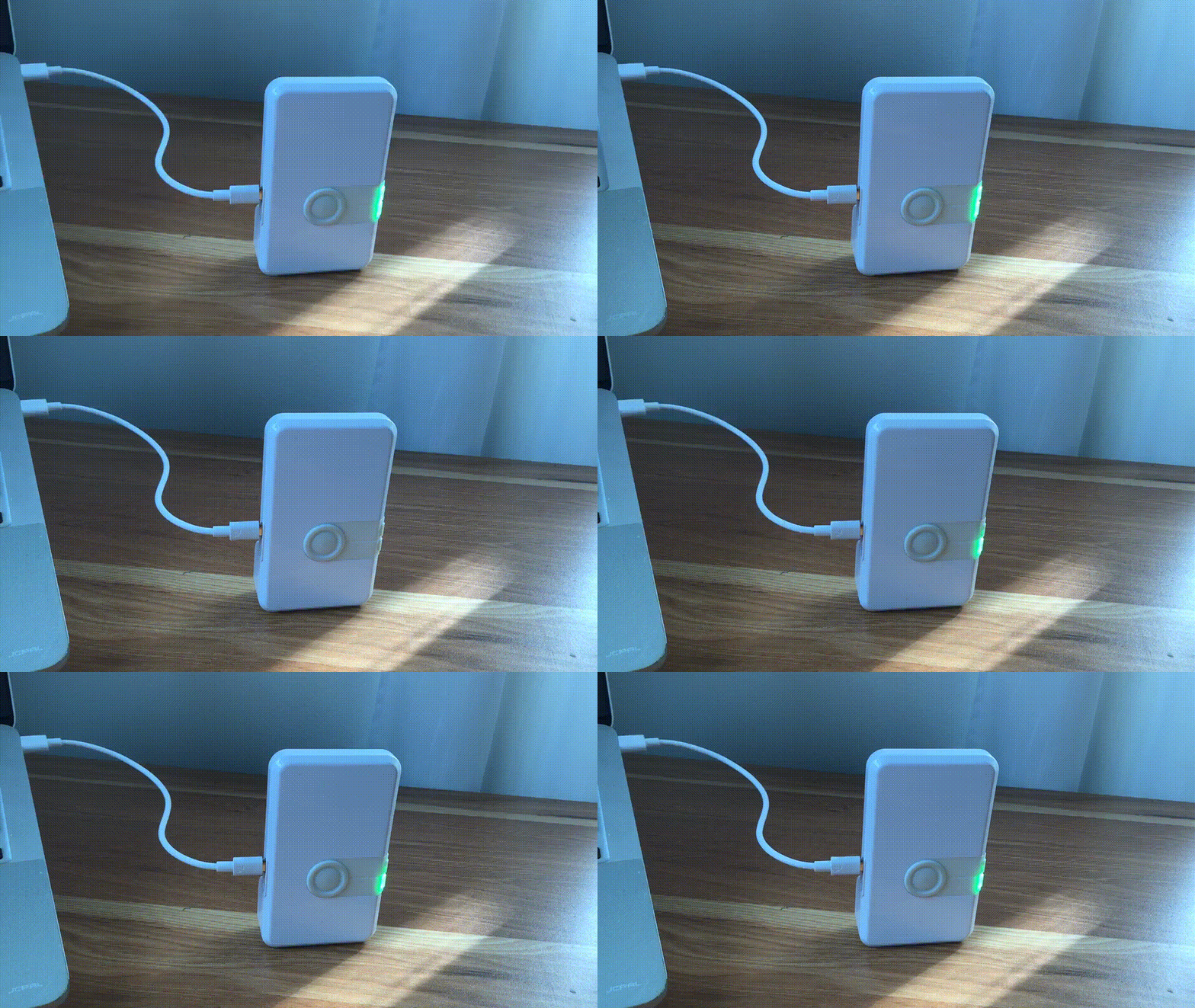
Now successfully configured QNI mode. Open the Qorvo Nearby Interaction or Qorvo NI Background application on your iPhone.
打开 Qorvo Nearby Interaction 应用程序后,它会立即使用 QNI BLE 服务扫描附近的配件。
当找到QNI配件并将其添加到列表中时。 请 选择并连接 到您要开始附近互动的配件。 支持多个连接。
近距离交互背景模式 要求配件与iPhone设备配对。
当首次与设备连接时,以及当应用程序首次启动 NI 会话时,它会请求用户批准使用附近的交互。
一旦配件与 iPhone 配对成功,在配件与 iPhone 之间的未来互动中,就不再需要配对和权限访问。
iPhone 将开始与配件进行测距,并在每一轮测距后显示 iPhone 与配件之间的测量距离。
在 Qorvo NI Background 应用程序使用 NI Background 模式的情况下,更新率会比 NI Foreground 模式低 1/3. 即使 iPhone 的显示屏关闭,也会在后台进行测距。
在 Qorvo Nearby Interaction 应用程序使用 NI Foreground 模式的情况下,还将显示从 iPhone 到配件的角度和方向. 测量值是从 iPhone 的角度测量的. 当你改变设备的方向时,应用程序还可以提供一个增强视图,利用 iPhone 的摄像头和显示屏来定位配件。
更多详情,请参阅 Qorvo 附近的互动 或 Qorvo NI 背景 应用程序。
Here are some tips for fixing some issues related to the installation process:
Please check the version. We recommend using the latest official version found under 发布.
When Bluetooth and the LEDs are both disabled, users may erroneously perceive the board as non-functional. In this scenario, the quickest solution is to perform a factory reset (frst) command via the shell.
当你不知道设备的当前状态时,请使用 LEAPS Manager 演示选择器中的 Reset devices to default 功能. 请参考下面的 GIF 图片。